Sunday, 25 November 2012

ZX Evolution


The tinfoil protects it from UFOs.
ZX Evolution is not an "old machine", but it continues the proud tradition of Spectrums in the 21st century. It is a new computer model based on the z80, compatible with Spectrum and Spectrum-related models, such as the Russian Pentagon.

The Evolution is not really meant to be a 100% authentic replacement for an original Spectrum, and it is not a Spectrum emulator either. As they say, it is a "hobby computer". This means it is good for building your own projects, no matter how big or small. You can enjoy making something simple like your own joystick connector, or you can try to rewrite the whole computer. Or you can be content playing games and watching scene demos. It's just that the foundation is a Spectrum compatible computer.

Basically, ZX evolution can be used for running original Sinclair Spectrum software as TAP files from a memory card. These files are available on emulation sites. The Evolution also reads TRD and SCL disk formats.

From Russia with Evol.
The package I received includes a short printed manual, a CD with software and information (mostly in Russian), stickers with the ZX Evolution logo and stickers for the keyboard with Sinclair Basic keywords. There is no power supply, connectors or any storage media. The manual, which is in English, is quite minimal, but it gives a detailed explanation of all the board connectors and pins and tells how to get the computer running. 

Stuff needed:

-A power supply
-A VGA monitor that can display 50hz and a VGA cable
-Alternatively you can use an RGB monitor/TV, but you need to build an RGB cable as there are only on-board jumper-style pins available.
-PS/2 compatible keyboard (My PS/2 - USB converter did not work)
-SD card (Not necessary, of course you can load games from tape)

ZX Evolution housed in a mini-ITX case, connected to a VGA monitor and a PS/2 keyboard.

ZXEvo for dummies

The simplest and most painless way to get ZXEvo up and running is to put it into a Mini-ITX case with a power supply. This is very easy and requires no special equipment or knowledge, only a screwdriver.

The board is larger than a Spectrum motherboard, so it does not simply fit inside an existing Spectrum case. This might be a pity for Sinclair fans, but it is hardly a big problem. However, with some creativity, I think it might fit inside a modified +2 case. The +2 case depth is about 170mm, which is the same as the board dimension.

I ended up buying an Antec ISK-110 VESA case, which offers good options for different positioning, including a wall mount. Nearly all the parts and faces of the case can be removed, and the cover is also quickly removable. This is quite important as otherwise it will be difficult to access the board.

Click the image for a closer look at this old Compaq keyboard/mouse combo,
fitted with the Evolution key stickers. 
In addition to the PS/2 standard mouse and keyboard connectors, the Evo board has pins for Spectrum-compatible keyboard and joystick inputs. Of course, these pins can be used for whatever switches you want to. The PS/2 functions as a Kempston mouse when used with old Spectrum software. It is also very simple to create mouse-based programs even in BASIC.

I used the front panel audio connectors for stereo out and tape in. I tested a cassette tape recorder for loading in an original Spectrum tape and (of course) it works. I also used Fuse spectrum emulator on Macintosh to send audio to ZXEvo audio in, with volume at maximum. If Fuse emulation speed is set to 200% and Evo is set to 7mhz, the files can be loaded in double speed. I can't vouch for the reliability of this method, though. Using 400%/14mhz did not work directly.

One thing I'm not yet certain is whether the RS232 port on board works as the Spectrum RS/MIDI port, of if it has some other purpose in ZXEvo.


Basic use

The first impression can be confusing. The screen is filled with numerous options and key commands. However, only few of these are important for the casual user. The screen has been clearly divided between settings and direct commands. There is some mouse support, but to be honest the direct key commands and cursor keys work better. 

The normal EVO Service boot screen.
Using reset (F12 on the keyboard) always brings back the boot screen. The EVO service boot screen is not the only boot screen, as it depends on the chosen service. Pressing 0 together with the reset should bring back the original EVO reset service.

Loading TAP tape images, TRD or SCL files from the memory card is straightforward. "File browse" can be used for selecting these file types. Tapes run instantly, and TRD and SCL also require to use "TR-DOS boot" option after the image has been chosen. Press reset button when bored to get back to the EVO reset service screen.

Pressing I and U keys boots a 48k and 128k Spectrum, respectively. The Turbo mode allows switching between 3.5mhz, 7mhz and 14 mhz CPU speeds.


TR-DOS what?

None of the following is really necessary for the normal use of the ZX evolution, as disk images can be mounted in the boot screen. When storing data and BASIC programs from the Spectrum to the memory card, it becomes necessary to learn some TR-DOS. The command SAVE "myprog" from BASIC does not store the program on the disk, as the computer will begin outputting the file as audio. 

The average Sinclair user may never have encountered TR-DOS, but it is quite big part of the ZX Evolution experience and very much used in the Russian Spectrum scene. One should know at least how to exit it! (Hint: It's the RETURN keyword.)

TR-DOS is basically a command set for a disk interface that was not part of the normal Spectrum. It originated in the UK, but it seems the later Russian computers generally used a modified TR-DOS for disk access. Here, it allows running and storing data to a ram disk or a disk image on the memory card. 

Thankfully, it's not very complex. In BASIC,  the interface is entered via RANDOMIZE USR 15616 and then the SAVE keyword works as usual. If the mounted image is on the memory card, the basic program will be permanently stored within that image on the card.

LISTing the contents of a disk image in "drive A" via TR-DOS.

When in TR-DOS, the commands are accessed through normal Spectrum BASIC keywords, which now have a different meaning. LIST lists the current disk image contents. Using LOAD "filename" loads and runs the chosen file. SAVE can be used for storing the current BASIC program into the chosen disk image. COPY can be used for copying files and so on. RETURN keyword exits the TR-DOS.

From the BASIC, RANDOMIZE USR 15616 brings back the TR-DOS. The disk interface can be accessed even if you did not boot into TR-DOS, as the interface is a permanent part of the ROM.

Viewing the SD card contents via TR DOS.
The later ZX Evolution firmware has been extended to allow mounting and manipulation of TRD disk images from the SD memory card from inside the TR-DOS interface. The memory card has its own file structure, the one that can be seen if you connect it to your PC and Macintosh. This is also shown by the EVO service file selector. The disk images on the card have their own internal file structure that is normally visible in TR-DOS.

Now, both file structures can be accessed from within TR-DOS. This can be confusing, as there are two "layers" of directories and a different command set for each of them. The new commands are preceded with a period (".") and these are typed in letter by letter. .DIR lists the contents of the memory card (and NOT the TR-DOS disk image), and likewise .CD and .MOUNT can be used to access the files on the card. .MOUNT filename drive: inserts the chosen disk image into the chosen virtual drive. .A:, .B:, .C: and .D: can be used to switch to that drive. Then the disk image contents can be viewed with the LIST keyword.

Assuming there is a folder called TRIMAGES in the SD card PC filesystem, and within that directory there is a TRD image called ELITE3:

.CD TRIMAGES
.DIR
.MOUNT ELITE3.TRD B:
.B:
LIST
LOAD "boot"

It appears confusing but as I already said, this is not really necessary for running software. The images can be mounted and booted from the EVO service file selector. Working with the TR-DOS can be messy, and it is not always obvious what is going on, depending on what machine has been booted. Sometimes it seems the ZXEvo insists on loading the boot file on the disk regardless of what I'm trying to do. So, a little persistence is needed.


Summary

A card reader and an original Spectrum is a good combination if you just want to run programs and games on the original, authentic hardware. Emulation is even easier choice. Pretty much everything can be made to run on an emulator these days. Emulators are good for cross-platform code development, as you can get your code running instantly. But honestly, emulation on its own gets a bit boring. There are no simple connectors for Do-It-Yourself projects. You also have to wait for the computer to boot up. Also, modern computers do not easily give solid frame rates.

Now, the ZX Evolution is a new computer, a continuation of the Spectrum lineage in Russia in the 90s. It is very open for simple modifications and personalization, starting from the casing and the keyboard. It is silent and the boot time is instantaneous. The Evo can also run various different versions of the Spectrum-style computers, and is not limited to the original hardware.

ZXevolution page on NedoPC

NedoPC site

http://zx.rediron.ru/ (ZX Evolution site, in Russian)

Blog post about installing TS-Conf

Sunday, 18 November 2012

Spectrum 128 and MIDI


Information on MIDI and the ZX Spectrum is available on the net but it is a bit more scarce than one might think. So I'll try to collect some of the useful things here and also fool around with Spectrum and MIDI.

The RS232/MIDI port on the back of the Spectrum is not a standard MIDI port, obviously. But making it work is not a matter of simply rewiring the port, as it needs a few resistors and a transistor. Also, a somewhat obscure plug is needed if one does not wish to build the cable directly into the Spectrum.

Pictured, a BT-like plug and a DIN-8 connector, which passes for a MIDI port.
The plug at least looks like a BT cable, 631A, with all the six pins. The plastic parts may need some changes before it fits the Spectrum port. For the MIDI connector, I used an 8-pin DIN, which has more pins than a MIDI port requires, but as long as there are holes in the correct place it does not matter. My MIDI connector is built according to a document by Ben Versteeg at benophetinternet.nl/hobby. Direct link to the document is here.

The white cable is connected to the RS232/MIDI port. Yes, it looks a bit messy now.

Programming MIDI via BASIC

Try as I did, I could not really find a proper MIDI sequencer for the Spectrum. I suppose around 1986 onward nobody in UK did little else than games for the Spectrum. Possibly the russians have made something for their Pentagons and Scorpions, but they might not work on a vanilla machine.

Fortunately, BASIC offers a simple way to test the port in action. The Sinclair Spectrum 128k introductory manual describes all the commands. Perfectly timed sequences can be built out of text strings. As the Spectrum BASIC allows fairly flexible string manipulation, tunes can be structured programmatically. The single PLAY command then initiates the whole multi-channel sequence.

The pseudo-full screen BASIC editor in 128 Spectrum.
Something like this was used to create the loop in the video above.
 
The example below should be valid in 128 BASIC:

10 LET a$="T120Y1M1O3N((1e1e1e1e1e1e1e1e))"
20 LET b$="T120Y1M1O3N((1c1&1&1&1&2&1&1&))"
30 PLAY a$,b$

The example plays notes simultaneusly on two channels. T sets the tempo at 120BPM. Y is the important command here, as Y1 selects the MIDI output channel #1.

The actual tune is controlled by the codes within the character strings. Lower case letters cdefgab play the notes on the octave, whereas upper case letters CDEFGAB play notes on a higher octave. The & denotes a rest. The notes are preceded by a number (1-9) that defines their length. Using a # indicates a sharp note. The brackets are used to repeat a section, and this can be done to up to four levels. Here I'm looping the contents four times.

M selects the channel (not needed for MIDI I think). O1 sets the octave at the second lowest octave. N is used to separate numbers from each other. It seems to be a good practice to insert it at least between the setup and the notes. Z apparently would send out raw MIDI data, but I'll see about that one later.

A 32-step sequencer with two channels.
It's fairly easy to sketch out graphical ways for creating sequences. as the data can always be "compiled" into the strings and played. However, in BASIC these things are notoriously slow. One thing to avoid is trying to build loops or song structures with GOTO commands. It just won't work. It's better to append the whole song into the character strings and use a single PLAY statement.

To be continued...

The Spectrum connected to a KORG Electribe sampler.

Sunday, 4 November 2012

Spectrum 128k+2 MINI summary


The above shows a modified Sinclair Spectrum+2, side to side with the original rubber keyed Spectrum 48k. I removed the integrated tape recorder. I have described the modding process with detail. Links to Part I and Part II. As an add-on, the picture shows the Divide 2k11 compact flash card reader, which removes the need for tape loading.

I bought my Divide 2k11 from Lotharek.

If you want to repair the tape recorder instead of removing it, here are some pointers.

RWAP software is worth mentioning. They sell keyboard membranes for the Sinclair series.

Schematics for building an RGB cable for the 128k +2. Fortunately this one is probably the simplest to build.

Alternatively, you can order one online from Retrocables. It can come off cheaper than building your own if you don't have the parts and equipment already.


Saturday, 6 October 2012

Sinclair Spectrum 128 +2 MINI part II

(Continued from Part I)

I'll continue describing the MINI ZX Spectrum 128+2 project, a.k.a "The sawed-off Spectrum". I'm not entirely satisfied with the turn of events described here. Also, some of the following stages might be avoided, but bear with me.


I previously cut off the cassette recorder part from the main body. I have also cut about two centimeters off the end of the recorder part. The opening will be capped with this small part. Just as the first cut was aligned with the left side of the tape recorder opening, the second cut was positioned with the right side. This was pretty convenient.

Now the cut edges need to be smoothed and connected to each other.

Sanding the edges


When I understood the project would involve sanding, I was somewhat demoralized. It needs a lot of patience to get good results. I might also end up doing a lot of work that gets me nowhere (I'm thinking of the seam). Yet I could not imagine any other way for smoothing the part edges.

Building the sanding device. The sanding paper is glued to a block of wood.
I used 120 grit sand paper for the more rough work and a 240 grit "metal" sanding paper for smoothing it off. The little end piece was worked against a sanding paper on a table surface. For sanding the face on the Spectrum body, I created a bit more sophisticated sanding setup.

I positioned the Spectrum cover upside down on two thin wooden "rails", so that the body would stay level. I glued a piece of the 120 grit sanding paper on a wooden block. This helps to get the sanded surface into a 90-degree angle. 

The sanding jig in action. The Spectrum body is elevated on two rails. There's also a piece of wood under the sanding block, not very visible in the picture.
(Of course, sanding plastic may be a bit of an unpredictable health hazard, so I'm not really recommending it. Especially machine sanders tend to produce fine particle dust floating in the air. I did some work inside but as the workload got bigger I moved outdoors.)

Sanding the body part with the block did not take long. In fact, the smaller piece was more difficult to do and ended up a bit skewed.

Joining the pieces


This is the stage that I have been longing to get at. Would the two pieces connect well? After the sanding, the connecting surfaces turned out to be better than I expected. I did not think too long and just used a simple generic "Scotch" plastic glue to put the pieces together. Although the parts fit each other very well the seam line remained very visible, as expected.

As can be just about seen from the image below, the piece is at an angle with the body. This was a result of careless sanding of the smaller piece. The process almost automatically eats away the shorter ends, where there is less surface area. Therefore the angle did not stay rectangular. Some more thought could have been used there. Fixing this would have required so much more sanding I let it be.

The seam is coloured by dust and is really not that prominent. The resulting surface is still pretty smooth.
I also did a little extra thing, which may or may not be silly. I used a solder station in 300C setting to melt and fuse the seam from the underside. I hoped to give some additional firmness to the connection, as I don't trust this glue that much. However, I suppose it's not a good practice for connecting plastic pieces. (Also, the resulting gases and stench are quite horrible.) 

Why not "fuse" the topside too with the soldering iron and sand off the residue? I did not dare to. It might have resulted in pits and holes that would have been impossible to remove with sanding.

Also notice the mysterious block of soft gum at the bottom of the picture, a feature of the Spectrum +2. 
I might eventually need to spray paint the cover, to make the seam invisible. But in order to do that, I would need to level the seam completely with some kind of paste, and sand the surface before painting. No surface unevenness can be hidden with the paint alone. I do not have any good filling material now, so this stage will have to wait a little. Of course this somewhat defeats the purpose of sanding the faces in the first place, as with the paste almost any holes could be filled prior to painting.

Before filling off the seams and painting.

So, what was meant to a be a very simple cut, has become a complicated mucking around with different materials, glues, paints, primers and whatnot. Nevertheless, the initial idea has now been mostly achieved. The right side is slightly longer than in the original mock-up image, but this way I could avoid creating problems with the heat sink. Besides, this outcome resembles the original Spectrum 128 and Spectrum+ asymmetrical designs, so it can't be all bad.

Putting it all together


I cut a part out of the heatsink with an iron saw. This way it can be bent tighter. The sink is now so small that it would be possible to make the computer as short as in the original mock-up image. But I'm ok with the results for now.

The iron saw bites the material very well.
Here, the modified heat sink is relocated inside the bottom part of the casing, which has now been put together with glue and melted plastic. The original L-shaped heatsink curled around the corner of the screw holder and faced the grille behind the machine. Now it's bent into a strange block. I just assume this is sufficient, but at least some testing is needed before I can say this is safe.

The not-so-good place for the heat sink.
If I did this again, I'd make sure to bend the heat sink around the original screw holder position. (I may still do it later). This requires sawing off a bit off the heat sink. It would have been easy to saw off before the piece was bent, but I avoided this precisely because I thought I'd avoid sawing the heat sink.

If positioned as in the image above, the heat sink will touch the bottom part of the box that contains the keyboard. (It is held in the top part of the plastic casing, not shown in the pictures.) The heat now probably spreads to that element, which may not be so good. It is much better to push the sink nearer the backside of the computer anyway.

I've only begun to scratch the surface of what can be done... (groan)
I've for now abandoned the idea of painting the surface. The Mini spectrum is still meant to be a useable object, and spray paint wears off a bit too easily. I'm now looking into the possibility of concealing the seam with scratching. So it's more of a camouflage technique. The seam can of course be seen in good lighting conditions, but it's not so prominent as before. It requires some "artistry" to create the best optical effect. What hides the seam from view from one angle may not be sufficient for another.

I like the scratching idea because it solves the main problem and can be still undone if I find a better solution.

Looking back...


For the most part, the 128k 8-bit computers were placed into big, imposing cases with little more inside compared to their predecessors. In terms of weight and dimensions this was a step backwards from the 16-64k wave of 8-bit home micros.

The mod ought to fix this problem somewhat. Let's see what the numbers say:

Original weight: 1.525 kg
New weight: 1.186 kg 
ZX Spectrum+ weight: 0.86 kg
ZX Spectrum weight: 0.55 kg

Original width: 44 cm
ZX Spectrum 128k width: 32 cm
ZX Spectrum+ width: 31.7 cm
New width: 31.5 cm
ZX Spectrum width: 23.0 cm

(Some of the values are taken from old-computers.com. 128k Spectrum weight was not available.)

I'm not saying that smaller and lighter is always better, as there's bound to be a comfortable size for the keyboard and a too light computer might be "swept by the wind". But it is great to get the bulky old 128k+2 more closer to the Spectrum+ dimensions.

The modified +2 required some more work than I anticipated, but it's still not too huge a project. Of course, having all the tools at hand was a big incentive for doing it. It might be a bit expensive to buy all the saws, knifes, glue and sanding paper just for this purpose. But I'm confident it might be pulled off with less equipment.

This has not been an electronics project, so these questions are still open:

-How to rewire the power LED?
-How to build a tape audio in port? (Maybe not necessary)


Thursday, 20 September 2012

Sinclair Spectrum 128k +2 MINI

Sinclair Spectrum 128k +2 Mini!
The above image is a mock-up of what a sawed-off Sinclair Spectrum 128k +2 might look like. Read below to see how it turned out to be reality! The idea for this picture came from Marq, who suggested removing the ugly and unnecessary tape device in a rather brutal manner.

The original
The initial idea was that the cut would be aligned with the left edge of the cassette slot opening, giving a very straight line from which to begin. The whole operation ought to be simple, as the tape recorder is not really very integrated to the other stuff inside the casing. The motherboard is entirely contained at the left side.

128+2 insides: With the cut, the heat sink would have to be re-arranged and the casing would lose one support.
Still, the cut suggested in the first image may not be quite as straightforward. There are some parts beside the tape recorder that extend beyond the cutting line. This could be covered by having some kind of addition to the right side, perhaps something that resembles the original 128k Spectrum. Another option might be to use a couple of centimeters of the +2 casing itself! But this would probably leave a visible seam.

Preparing for the cut


Removing the cassette recorder proved to be simple. Also, the computer appears to work just as well without the tape recorder, which comes as no big surprise. In this process the power LED has come off, and I think someone else will have to figure out how to rewire it.


The now revealed plastic protrusions and screw holders can hinder the cut, so some re-thinking is in order at this stage. On the plus side the heat sink (A strange L-shaped contraption) may indeed be possible to turn around to the front side. However, it is unlikely to fit without at least some changes.

Cutting


About that re-thinking... Nah, I just decided to go with the original line. I first used a sharp paper knife to cut as deep as possible along the side of the tape recorder opening. Using a ruler, I also made careful lines using the opening as a guideline. When it came to actually cutting the plastic, the paper knife turned out to be surprisingly poor, so for the rest of the project I only used it for initiating points for sawing.

Some care needs to be taken when sawing the front. I used a straightedge and the paper knife before sawing.

I used a "Japanese" style back saw, meant for wood cutting. I probably ruined the blade but it had seen its best days anyway. This saw took to the plastic surprisingly well, and I felt encouraged to just push violently through the screw holders and other protrusions. However as I progressed I realised the casing would loose most of its support at the same time, and the part remaining to the right side of the keyboard became quite fragile. So I did away with the protrusions with some more care, trying to saw them sideways from below when possible.

The tape recorder part could be made into a unique, stand alone, Spectrum-themed tape unit. But who cares?

It might have been a wiser move to saw first the bottom half, leaving the more visible parts for later stage. Then I could have used the "gained experience" for the more important parts. But this way, I can use the existing cut for lining up the bottom half of the casing. Had the bottom been cut first, the resulting alignment might have been unsuitable. 

But really, I just could not resist getting first at the meat of the matter!

And now, what at first was just a mock-up, is rapidly becoming a reality...
The resulting edge is surprisingly straight given it is hand sawn and my sawing skills are a bit rusty. The success is mostly thanks to the existing tape recorder opening edge. The face certainly needs sanding, but perhaps not as much as I had feared.

Cutting the bottom half posed no problems, but making the end part from the remaining plastic and solving the heat sink placement is a bit tricky.

Closing the case


I have bent the heat sink from the L-shape to a formless blob. It does not quite go into a neat U-shape, at least without sawing the piece. I'm hoping to avoid that work phase, yet it may come to that.

Yet another decision to make...
The seam looks worrying at the moment, and at this stage I am tempted to cap off the end with a flat plastic plane cut from the former case bottom. This would diminish the effect of the seam and make the computer look very neat (from front and above) and much like the original mock-up image. However this would buy very little room for the heatsink and would maybe not look so nice from the side.

Adding the pictured end piece gives some more length to the computer, a bit like the original 128k Spectrum. The bent heat sink would fit easily. This direction means that there will be nearly endless sanding of the two parts and still the seam will probably be somewhat visible.

So, which ever route will be chosen, there will be work. But then again so far everything has gone quite smoothly.

(Continued to Part Two)

Saturday, 15 September 2012

8-bit CAD attack

In the following, I will shortly discuss the phenomenom of 3-D modelling on 8-bit computers. I'll also give a little example in Sinclair BASIC that makes use of 3-D graphics and perspective foreshortening. This gives some idea of how the topic of 3-D graphics appeared to the hobbyist programmer at the 1980s.

This kind of software allowed the definition of shapes in three mathematical dimensions. Then these objects would appear from an angle. It's a far cry from today's modellers, where it is possible to sculpt an object directly on the screen as it appears. Also, these little programs are not really Computer Aided Design packages by any means, but it's still interesting that these were ever made.

VU-3D on the Spectrum

VU-3D was created in 1982, released pretty much alongside the release of the Spectrum. Psion made some of the most competently programmed software of the early Spectrum days. To my knowledge, since then nobody has really attempted to create a three-dimensional object modeller and solid renderer on the Spectrum. 3D Construction Kit (1991) from Domark might be closest to the description.

The VU wineglass, the Spectrum equivalent of the tea kettle!

At least to me, the VU-3D wine glass and box image was one of the early "iconic" images associated with the Spectrum. The screenshot was the basis for the cassette inlay of the package.

The three-dimensional shape is created by adding sections from bottom to top.
The editing is quite slick, but does not have any functions for modifying the existing points (that I know of). Nor is there any grid snap that would have made it easier to align the points. When viewing the object, there seemed to be some limitations to the angles from which it can be viewed. So, when devising the object, one needs to be careful to think which way it will be positioned, as this fundamental angle cannot be changed afterwards.

Viewing the created object.
So, it's pretty much a toy program, but the shading renderer is pretty impressive for its time. I found it quite difficult to do anything that would compare with the complexity of the wine-glass object, though.

ORIC CAD

Curiously, a very similar program exists for the Oric home computer, produced by Tansoft. After about 10 minutes of loading (in the slow speed) the user is greeted with a screen of text. Everything appears to have been written in BASIC. The demo object is a kind of round object made from an extruded pentagon, not as impressive as the wine glass on VU-3d.


A complete 8-bit CAD workstation!
The shape addition is not that different to the VU-3D. However, it is possible to go through existing points in the shape and adjust their coordinates. This makes it much more simple to correct any distortions that might have occurred.

Outlining the shape plan with ORIC-CAD.

One question is whether the Oric program is just a straight copy of the VU-3D, or whether there exists a common precedent that they both attempted to emulate. Perhaps there is some precedent on the bigger computers or turnkey CAD systems. Possibly it was something that was featured on a TV show, so the programmers might not even have had real first-hand experience of these bigger programs. But then again, Psion programmers for the early Sinclair software appear to have been quite competent so who knows.

3-D objects in Sinclair BASIC

Given the simplicity of the above programs, it might be just as useful (or useless) to write a program of your own. So, of course I could not resist the idea of doing something very quickly.

The example below gives some idea how such a program could be started, although it has many limitations compared to the above software packages. Back in the day, 3-D programming was quite a difficult topic. Then I could not really work my head around it at all, as oftentimes the examples were quite impenetrable. Yet, after getting how the objects are defined as coordinate lists, it really comes down to two things: perspective foreshortening and transformation (rotation), which are applied to all the coordinates.

I only cover the foreshortening in the following, although one could argue the rotation would be just as important. The foreshortening is simply a matter of proportioning X and Y coordinates of a point with its depth coordinate. (In principle, X=X/Z and Y=Y/Z for each defined point.) Of course the depth coordinate needs to be proportioned to something that gives a working result on screen.


The proportioning is done within lines 210-232 in the listing below. In line 200, the next point coordinate set (X=-50,Y=-50,Z=-50) is grabbed from the data list, and the following lines will mangle the numbers.

210 LET D=(Z+400)/300

First, the "eye" is set back 400 units so that the object coordinates will all be positive. (This adjustment might have been done in the coordinate list, but it's clearer to define the object along it's own coordinate centre.)

The Z coordinate is divided with 300. Here it is a rather arbitrary number. It is meant to give a ratio that shows the object in good size on the TV screen. There's no "right" number as it depends also on the distance and the size of the object, and ultimately what the program is meant to do. Here I'm just interested in getting a sizeable object on screen and 300 seemed to do the trick.

Then the X and Y coordinates (horizontal and vertical) are divided with the proportioned Z coordinate, stored in the D variable. (Line 220) The line 232 moves the coordinates in relation to the middle of the screen. (Remember, Spectrum has 256*192 pixel screen)

Here's the code. Go on, type it on your Spectrum!

By the way, if the eye needs to be moved to the side, a LET X=X+75 (or whatever) after line 200 will do the trick. If this number is too great, the object is drawn out of screen and the program will fail.

There's some added trickery that makes the program use the previously calculated point as a basis for drawing a continuos line through the coordinates. Hence, the DRAW x2-x,y2-y thing at line 40. This helps me avoid making a separate coordinate and point connection list.

The limits of the presented program are obvious. As it is not possible to rotate the coordinates in relation to the eye, the program output is confined to frontal views. Well, one could insert coordinates for a pre-rotated, diagonal cube, but it would be more effective to have the transformation within the program. This would be done after the line 200. 

Some "fun" with the above program.

However, as Spectrum BASIC does not allow lines to cross the screen boundaries, there's only so little that can be done with the above example. Furthermore, if I wanted to extend this program for viewing objects and spaces from the inside, the lines would need to be "clipped" also in relation to the picture depth plane, which is an added complication. Including all required line clipping and transformation routines woud also slow the drawing speed.

Thursday, 23 February 2012

Panasonic JR200 insides

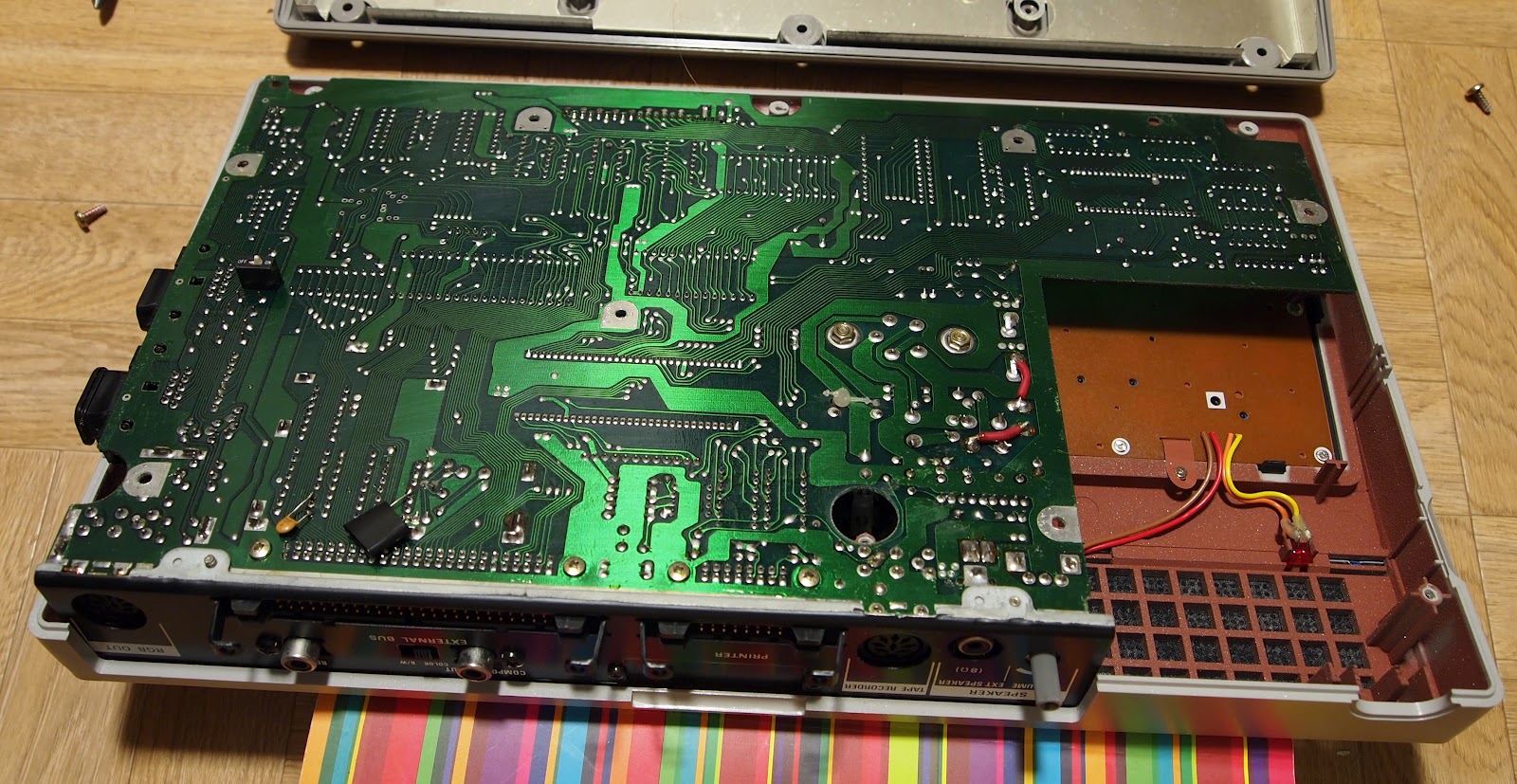
Here are photographs from the board inside the Panasonic JR200UP. At the centre, little to the left, the MN1800 processor can be seen, a clone of Motorola 6802. Another very important chip is the MN1544, a 4-bit co-processor with its own memory, located in the bottom right section.

Click on the images to see the high resolution versions, or open them in a new tab to download the full-size originals. I have photographed these images myself and they can be used freely.

Panasonic JR200 board from above.

The board from below.